happyhorse-video
HappyHorse (Happy Horse) video by Ace Data Cloud. Generate videos from text or images, use subject or style references, and edit existing videos. Use when the user asks for HappyHorse video generation or editing.
Install
npx skills add https://github.com/AceDataCloud/Skills/tree/main/skills/happyhorse-video
claude plugin marketplace add https://llmmart.ai/marketplace.json && claude plugin install acedatacloud-skills@llmmart
git clone https://github.com/AceDataCloud/Skills.git
The skills CLI installs just this skill, for any of its supported agents. Claude Code installs the whole acedatacloud/skills collection as a plugin from our marketplace. Git is the plain clone.
README
HappyHorse by Ace Data Cloud — skills.sh first run
Use HappyHorse through the Ace Data Cloud API from an Agent Skills-compatible coding assistant. This Skill is maintained by Ace Data Cloud and uses your Ace service API key; it does not claim to be published by HappyHorse. Install it independently; the account Skill and an MCP server are optional.
简体中文 · skills.sh installation page · current models and pricing
1. Install this service only
Open the skills.sh page above and check the repository is acedatacloud/skills. In your project terminal:
npx --yes skills@1.7.2 add acedatacloud/skills --skill happyhorse-video -a codex --yes
npx --yes skills@1.7.2 list
This example targets Codex; replace codex with your supported agent, such as claude-code or cursor. For Codex, the installed instructions are .agents/skills/happyhorse-video/SKILL.md. Start a fresh session. Installation does not generate media or set up an API key. This is a Skill, not a model-provider dropdown or a new extension button.
For the released snapshot checked on 2026-10-18, use https://github.com/AceDataCloud/Skills/tree/v2026.1017.279001 in place of acedatacloud/skills. That released snapshot predates these improved instructions; use the default branch after this PR is merged to receive them.
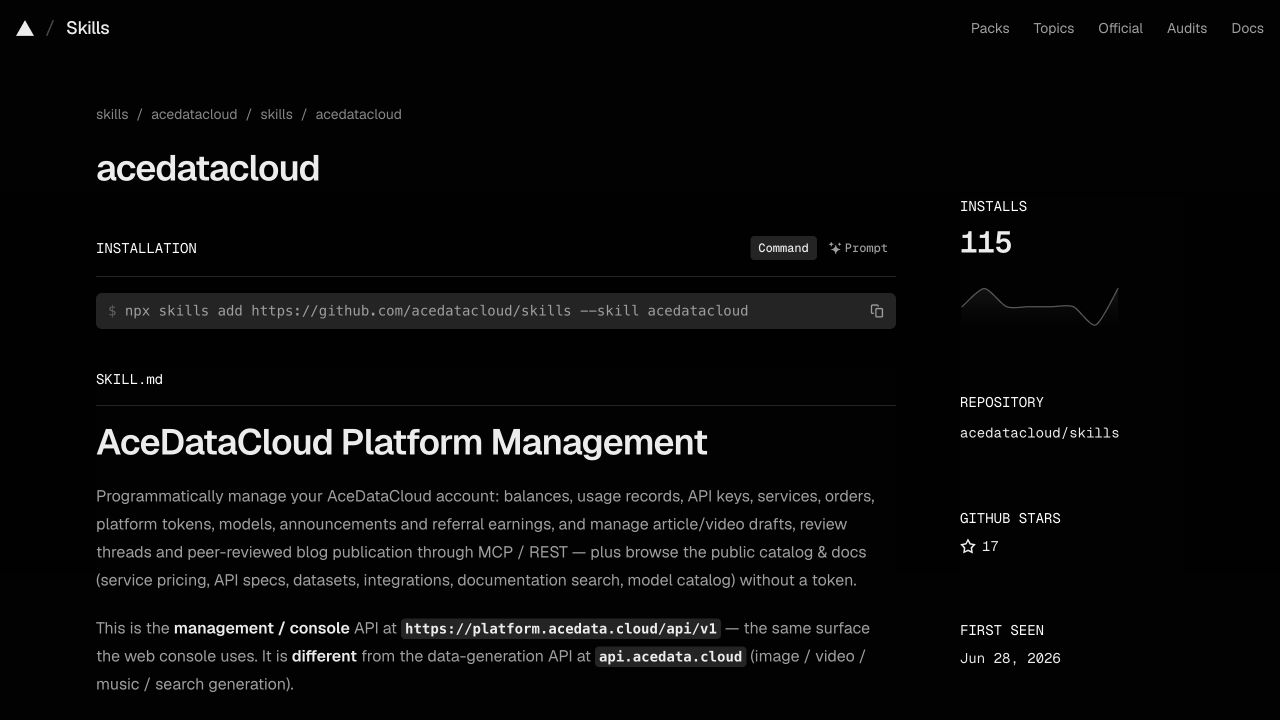
Actual account-Skill page captured on 2026-10-17, showing the same installation control. Use this service's slug above; the screenshot is not a happyhorse-video installation or generation result. Image sources and limits.
2. Register, sign in and get the correct API key
- Open Ace Data Cloud → Applications; register and sign in if needed.
- Open General application. If absent, choose Initialize General Application. Check HappyHorse access, current balance and price before submitting anything.
- Copy the key on the application card, or open Manage Keys → Create to create a separate key such as
skills.sh HappyHorse. Set expiry and API/usage limits as needed. If Allowed APIs is enabled, include/happyhorse/videosand/happyhorse/tasks. Other actions in SKILL.md may need extra routes. - Copy only the key value. Do not include
Beareror screenshot redaction characters. Aplatform-...management token is not the service key.
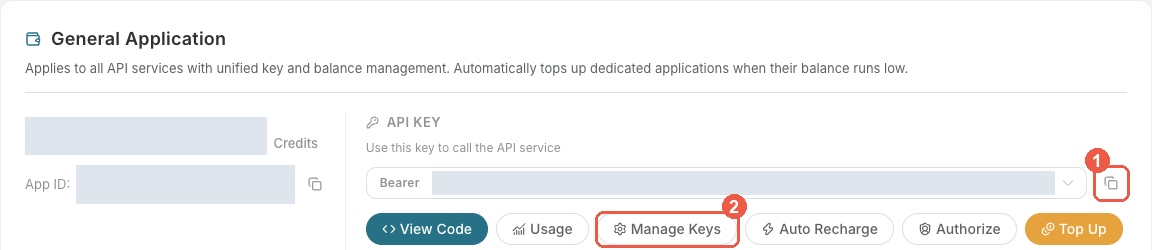
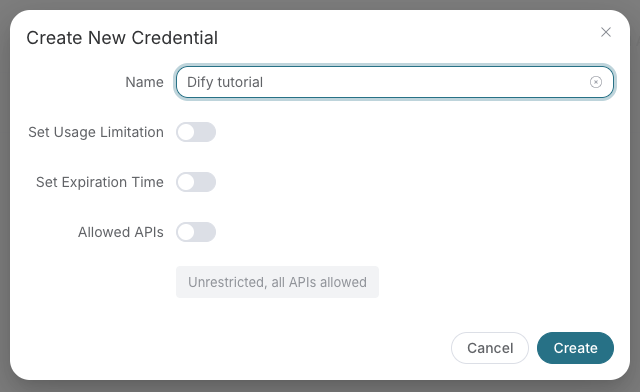
These are existing, redacted Ace console screenshots from the Suno Dify guide, checked on 2026-10-18. They illustrate the shared key controls, not a HappyHorse run in skills.sh. The example name “Dify tutorial” is illustrative; use your own name. Menu labels may change.
3. Put the key in the assistant's execution environment
skills.sh does not store credentials. For a terminal-launched coding assistant, export the key in that terminal before starting the assistant, then start a new session:
export ACEDATACLOUD_API_TOKEN="your_api_key_here"
For an already running IDE, restart it from the configured environment or use that IDE's documented secret/environment settings. A Skill install does not load .env automatically. Never paste the key into a prompt, commit it, or print it in logs. OpenClaw has its own Gateway setup in SKILL.md; it is not required for skills.sh installation.
4. Submit once and inspect the result
Read SKILL.md and its exact request shape first. Ask your assistant to use HappyHorse by Ace Data Cloud, inspect the current price, and prepare a single video request using happyhorse-1.1-t2v. Approve the intended cost before it submits /happyhorse/videos. Installation and a prepared request do not prove that generation ran.
Run the existing Quick Start only after the key and intended cost are correct. For an asynchronous response, save its task ID and query that same ID at /happyhorse/tasks. Do not resubmit generation to check progress. Read the final video URL from response.data[].video_url; a task_id alone is not a completed video.
Example request copied from this Skill's current Quick Start. Billable: run only after confirming the service, price and intended request. It has not been executed for this guide:
curl -X POST https://api.acedata.cloud/happyhorse/videos \
  -H "Authorization: Bearer $ACEDATACLOUD_API_TOKEN" \
  -H "Content-Type: application/json" \
  -d '{
    "action": "generate",
    "model": "happyhorse-1.1-t2v",
    "prompt": "A cinematic white horse crossing a snowy ridge at sunrise, wind moving its mane, slow camera push",
    "resolution": "720P",
    "ratio": "16:9",
    "duration": 5,
    "async": true
  }'
If the response returns a task ID, query that ID with the following command; replace YOUR_TASK_ID with the existing ID.
curl -X POST https://api.acedata.cloud/happyhorse/tasks \
  -H "Authorization: Bearer $ACEDATACLOUD_API_TOKEN" \
  -H "Content-Type: application/json" \
  -d '{"id":"YOUR_TASK_ID","action":"retrieve"}'
The expected output is an actual returned audio/video/image URL after terminal success, not a URL copied from this guide. Keep the same task ID while pending.
Use the exact task response fields and terminal states in SKILL.md. A URL in this guide would be illustrative; no media generation was performed for this tutorial. Check the request/task history for one intended charge; a completed media link alone does not prove the final bill.
Troubleshooting
| Symptom | What to check |
|---|---|
| 401 | Full service key, no Bearer inside its value, available to the actual assistant process. |
| 403 | Service access, expiry and Allowed APIs; read the error because moderation can also return 403. |
| 400 | Exact model ID and request shape in SKILL.md; do not silently substitute a model. |
| 429 | Wait and reduce concurrency; do not automatically retry a paid submit. |
| Pending / timeout / 5xx | Read the same task or request history before considering a new submit. |
| Media URL unavailable | Confirm terminal success and use the actual returned URL; share only task/trace ID with support. |
Support: dev@acedata.cloud. Source: AceDataCloud/Skills. skills.sh installation counters are not unique users or revenue. Source links use the four supported UTM fields for this skills.sh guide; they do not prove a registration or payment.
Skill manifest
HappyHorse by Ace Data Cloud
Use Happy Horse through AceDataCloud for text-to-video, first-frame animation, reference-guided generation, and video editing.
Install and connect from skills.sh
This integration is maintained by Ace Data Cloud; it is not an official HappyHorse publisher listing. Install only this Skill with npx skills add acedatacloud/skills --skill happyhorse-video --yes, or use the public skills.sh page. Keep the slug happyhorse-video when selecting it.
Read the illustrated first-run guide (简体中文) for registration, Applications → General application, API key access and price checks, and the environment variable location for your coding agent. For skills.sh installations, use this guide; any ClawHub-specific setup applies only to OpenClaw. The shared references linked here are online because focused installs do not include sibling _shared/ folders.
Setup: See authentication for token setup.
Choose an Action
| Goal | action |
Valid models | Required input |
|---|---|---|---|
| Generate from text | generate |
happyhorse-1.0-t2v, happyhorse-1.1-t2v |
prompt |
| Animate one image | image_to_video |
happyhorse-1.0-i2v, happyhorse-1.1-i2v |
image_url |
| Generate from references | reference_to_video |
happyhorse-1.0-r2v, happyhorse-1.1-r2v |
prompt, 1-9 image_urls |
| Edit a video | video_edit |
happyhorse-1.0-video-edit |
prompt, video_url |
The 1.1 model is the default where available. Video editing currently has only a 1.0 model.
Quick Start
Submit text-to-video asynchronously:
curl -X POST https://api.acedata.cloud/happyhorse/videos \
  -H "Authorization: Bearer $ACEDATACLOUD_API_TOKEN" \
  -H "Content-Type: application/json" \
  -d '{
    "action": "generate",
    "model": "happyhorse-1.1-t2v",
    "prompt": "A cinematic white horse crossing a snowy ridge at sunrise, wind moving its mane, slow camera push",
    "resolution": "720P",
    "ratio": "16:9",
    "duration": 5,
    "async": true
  }'
The response contains a task_id. Poll it after about 15 seconds:
curl -X POST https://api.acedata.cloud/happyhorse/tasks \
  -H "Authorization: Bearer $ACEDATACLOUD_API_TOKEN" \
  -H "Content-Type: application/json" \
  -d '{"id": "<task_id>", "action": "retrieve"}'
Async: See async task polling. Continue until
response.data[].video_urlappears or a terminal error is returned.
Workflows
Text-to-Video
Use generate when no visual input exists. Describe the subject, action, environment, camera,
lighting, and style.
POST /happyhorse/videos
{
  "action": "generate",
  "model": "happyhorse-1.1-t2v",
  "prompt": "A white horse gallops across a moonlit beach, side tracking shot, silver reflections, cinematic realism",
  "resolution": "1080P",
  "ratio": "16:9",
  "duration": 8,
  "seed": 42
}
First-Frame Image-to-Video
Use image_to_video to animate one image. prompt is optional but useful for motion and camera
direction. The output ratio follows the first-frame image, so omit ratio.
POST /happyhorse/videos
{
  "action": "image_to_video",
  "model": "happyhorse-1.1-i2v",
  "image_url": "https://example.com/horse.jpg",
  "prompt": "The horse slowly lifts its head as the mane moves in the breeze, gentle camera push",
  "resolution": "1080P",
  "duration": 5
}
Reference-to-Video
Use reference_to_video with 1-9 reference images. Mention images as character1, character2,
and so on in list order when the prompt needs to distinguish them.
POST /happyhorse/videos
{
  "action": "reference_to_video",
  "model": "happyhorse-1.1-r2v",
  "prompt": "character1 walks through a sunrise meadow wearing the leather and gold style from character2",
  "image_urls": [
    "https://example.com/subject.jpg",
    "https://example.com/style.jpg"
  ],
  "resolution": "720P",
  "ratio": "16:9",
  "duration": 5
}
Video Editing
Use video_edit with an existing video and editing instructions. Add at most 5 reference images
for wardrobe, subject, style, or local replacement guidance. Use audio_setting: "origin" to
preserve the source audio.
POST /happyhorse/videos
{
  "action": "video_edit",
  "model": "happyhorse-1.0-video-edit",
  "prompt": "Apply the warm leather and gold style from the reference while preserving camera motion",
  "video_url": "https://example.com/source.mp4",
  "image_urls": ["https://example.com/style.jpg"],
  "resolution": "720P",
  "audio_setting": "origin"
}
Do not send duration or ratio for video editing. Output duration follows the source video.
Parameters
| Parameter | Values | Notes |
|---|---|---|
action |
generate, image_to_video, reference_to_video, video_edit |
Defaults to generate |
model |
See action table | The model family must match the action |
prompt |
string | Required except for image_to_video |
image_url |
URL | First frame for image_to_video |
image_urls |
URL array | 1-9 for reference generation; 0-5 for editing |
video_url |
URL | Required only for editing |
resolution |
720P, 1080P |
Uppercase P is required; default 1080P |
ratio |
16:9, 9:16, 1:1, 4:3, 3:4 |
Text/reference generation only |
duration |
integer 3-15 | Generation only; default 5 seconds |
watermark |
boolean | Default false |
audio_setting |
auto, origin |
Video editing only; origin preserves source audio |
seed |
integer 0-2147483647 | Optional reproducibility seed |
callback_url |
URL | Webhook for final result; returns immediately |
async |
boolean | Set true to return a task ID for polling |
Task Queries
Retrieve one task:
POST /happyhorse/tasks
{"id": "<task_id>", "action": "retrieve"}
Retrieve several tasks:
POST /happyhorse/tasks
{"ids": ["<task_id_1>", "<task_id_2>"], "action": "retrieve_batch"}
A completed single-task response stores the original request in request and the final API result
in response. Read the media URL from response.data[].video_url.
Gotchas
- Match the model family to
action; for example, an*-i2vmodel is invalid forgenerate - Resolution values are
720Pand1080P, not lowercase720p/1080p - Generated duration must be an integer from 3 through 15 seconds
image_to_videorequiresimage_url; its prompt is optional and its ratio follows the imagereference_to_videorequires a prompt and 1-9 imagesvideo_editrequires both prompt and video URL, accepts at most 5 references, and ignores duration/ratioaudio_settingapplies to video editing; useoriginto preserve source audio- A
task_idis not a completed result; poll until a final video URL or terminal error appears - Failed tasks are not billed; video edits use the upstream-reported input plus output duration for billing
MCP:
pip install mcp-happyhorse| Hosted:https://happyhorse.mcp.acedata.cloud/mcp| See all MCP servers
Files (skills)
-
README.md 7.3 KB
# HappyHorse by Ace Data Cloud — skills.sh first run Use HappyHorse through the **Ace Data Cloud** API from an Agent Skills-compatible coding assistant. This Skill is maintained by Ace Data Cloud and uses your Ace service API key; it does not claim to be published by HappyHorse. Install it independently; the account Skill and an MCP server are optional. [简体中文](readme.zh-CN.md) · [skills.sh installation page](https://skills.sh/acedatacloud/skills/happyhorse-video) · [current models and pricing](https://platform.acedata.cloud/models?utm_source=skills_sh&utm_medium=referral&utm_campaign=evergreen&utm_content=happyhorse_video_pricing) ## 1. Install this service only Open the skills.sh page above and check the repository is **acedatacloud/skills**. In your project terminal: ```bash npx --yes skills@1.7.2 add acedatacloud/skills --skill happyhorse-video -a codex --yes npx --yes skills@1.7.2 list ``` This example targets Codex; replace `codex` with your supported agent, such as `claude-code` or `cursor`. For Codex, the installed instructions are `.agents/skills/happyhorse-video/SKILL.md`. Start a fresh session. Installation does not generate media or set up an API key. This is a Skill, not a model-provider dropdown or a new extension button. For the released snapshot checked on 2026-10-18, use `https://github.com/AceDataCloud/Skills/tree/v2026.1017.279001` in place of `acedatacloud/skills`. That released snapshot predates these improved instructions; use the default branch after this PR is merged to receive them.  Actual account-Skill page captured on 2026-10-17, showing the same installation control. Use this service's slug above; the screenshot is not a happyhorse-video installation or generation result. [Image sources and limits](https://github.com/AceDataCloud/Skills/blob/0901d63b7f7d216318463b1c33976838a084da3b/docs/skills-sh/image-sources.json). ## 2. Register, sign in and get the correct API key 1. Open [Ace Data Cloud → Applications](https://platform.acedata.cloud/console/applications?utm_source=skills_sh&utm_medium=referral&utm_campaign=evergreen&utm_content=happyhorse_video_api_key); register and sign in if needed. 2. Open **General application**. If absent, choose **Initialize General Application**. Check **HappyHorse** access, current balance and price before submitting anything. 3. Copy the key on the application card, or open **Manage Keys → Create** to create a separate key such as `skills.sh HappyHorse`. Set expiry and API/usage limits as needed. If **Allowed APIs** is enabled, include `/happyhorse/videos` and `/happyhorse/tasks`. Other actions in SKILL.md may need extra routes. 4. Copy only the key value. Do not include `Bearer ` or screenshot redaction characters. A `platform-...` management token is not the service key.   These are existing, redacted **Ace console** screenshots from the [Suno Dify guide](https://github.com/AceDataCloud/SunoDify/blob/8d3d03570e73324220f111f7fe343da0792a8071/README.md), checked on 2026-10-18. They illustrate the shared key controls, not a HappyHorse run in skills.sh. The example name “Dify tutorial” is illustrative; use your own name. Menu labels may change. ## 3. Put the key in the assistant's execution environment skills.sh does not store credentials. For a terminal-launched coding assistant, export the key in that terminal **before starting the assistant**, then start a new session: ```bash export ACEDATACLOUD_API_TOKEN="your_api_key_here" ``` For an already running IDE, restart it from the configured environment or use that IDE's documented secret/environment settings. A Skill install does not load `.env` automatically. Never paste the key into a prompt, commit it, or print it in logs. OpenClaw has its own Gateway setup in SKILL.md; it is not required for skills.sh installation. ## 4. Submit once and inspect the result Read [SKILL.md](SKILL.md) and its exact request shape first. Ask your assistant to use **HappyHorse by Ace Data Cloud**, inspect the current price, and prepare a single video request using `happyhorse-1.1-t2v`. Approve the intended cost before it submits `/happyhorse/videos`. Installation and a prepared request do not prove that generation ran. Run the existing Quick Start only after the key and intended cost are correct. For an asynchronous response, save its task ID and query **that same ID** at `/happyhorse/tasks`. Do not resubmit generation to check progress. Read the final video URL from `response.data[].video_url`; a `task_id` alone is not a completed video. Example request copied from this Skill's current Quick Start. **Billable: run only after confirming the service, price and intended request.** It has not been executed for this guide: ```bash curl -X POST https://api.acedata.cloud/happyhorse/videos \ -H "Authorization: Bearer $ACEDATACLOUD_API_TOKEN" \ -H "Content-Type: application/json" \ -d '{ "action": "generate", "model": "happyhorse-1.1-t2v", "prompt": "A cinematic white horse crossing a snowy ridge at sunrise, wind moving its mane, slow camera push", "resolution": "720P", "ratio": "16:9", "duration": 5, "async": true }' ``` If the response returns a task ID, query that ID with the following command; replace `YOUR_TASK_ID` with the existing ID. ```bash curl -X POST https://api.acedata.cloud/happyhorse/tasks \ -H "Authorization: Bearer $ACEDATACLOUD_API_TOKEN" \ -H "Content-Type: application/json" \ -d '{"id":"YOUR_TASK_ID","action":"retrieve"}' ``` The expected output is an actual returned audio/video/image URL after terminal success, not a URL copied from this guide. Keep the same task ID while pending. Use the exact task response fields and terminal states in SKILL.md. A URL in this guide would be illustrative; no media generation was performed for this tutorial. Check the request/task history for one intended charge; a completed media link alone does not prove the final bill. ## Troubleshooting | Symptom | What to check | |---|---| | 401 | Full service key, no `Bearer ` inside its value, available to the actual assistant process. | | 403 | Service access, expiry and Allowed APIs; read the error because moderation can also return 403. | | 400 | Exact model ID and request shape in SKILL.md; do not silently substitute a model. | | 429 | Wait and reduce concurrency; do not automatically retry a paid submit. | | Pending / timeout / 5xx | Read the same task or request history before considering a new submit. | | Media URL unavailable | Confirm terminal success and use the actual returned URL; share only task/trace ID with support. | Support: [dev@acedata.cloud](mailto:dev@acedata.cloud). Source: [AceDataCloud/Skills](https://github.com/AceDataCloud/Skills). skills.sh installation counters are not unique users or revenue. Source links use the four supported UTM fields for this skills.sh guide; they do not prove a registration or payment. -
readme.zh-CN.md 5.8 KB
Loading… -
SKILL.md 7.7 KB
---
name: happyhorse-video
description: HappyHorse (Happy Horse) video by Ace Data Cloud. Generate videos from text or images, use subject or style references, and edit existing videos. Use when the user asks for HappyHorse video generation or editing.
license: Apache-2.0
metadata:
  author: acedatacloud
  version: "1.0"
compatibility: Requires ACEDATACLOUD_API_TOKEN in the agent process environment and HTTPS access to api.acedata.cloud. See README.md for installation and key setup.
---

# HappyHorse by Ace Data Cloud

Use Happy Horse through AceDataCloud for text-to-video, first-frame animation, reference-guided
generation, and video editing.

## Install and connect from skills.sh

This integration is maintained by **Ace Data Cloud**; it is not an official HappyHorse publisher listing. Install only this Skill with `npx skills add acedatacloud/skills --skill happyhorse-video --yes`, or use the [public skills.sh page](https://skills.sh/acedatacloud/skills/happyhorse-video). Keep the slug `happyhorse-video` when selecting it.

Read the [illustrated first-run guide](README.md) ([简体中文](readme.zh-CN.md)) for registration, **Applications → General application**, API key access and price checks, and the environment variable location for your coding agent. For skills.sh installations, use this guide; any ClawHub-specific setup applies only to OpenClaw. The shared references linked here are online because focused installs do not include sibling `_shared/` folders.

> **Setup:** See [authentication](https://github.com/AceDataCloud/Skills/blob/main/skills/_shared/authentication.md) for token setup.

## Choose an Action

| Goal | `action` | Valid models | Required input |
|---|---|---|---|
| Generate from text | `generate` | `happyhorse-1.0-t2v`, `happyhorse-1.1-t2v` | `prompt` |
| Animate one image | `image_to_video` | `happyhorse-1.0-i2v`, `happyhorse-1.1-i2v` | `image_url` |
| Generate from references | `reference_to_video` | `happyhorse-1.0-r2v`, `happyhorse-1.1-r2v` | `prompt`, 1-9 `image_urls` |
| Edit a video | `video_edit` | `happyhorse-1.0-video-edit` | `prompt`, `video_url` |

The 1.1 model is the default where available. Video editing currently has only a 1.0 model.

## Quick Start

Submit text-to-video asynchronously:

```bash
curl -X POST https://api.acedata.cloud/happyhorse/videos \
  -H "Authorization: Bearer $ACEDATACLOUD_API_TOKEN" \
  -H "Content-Type: application/json" \
  -d '{
    "action": "generate",
    "model": "happyhorse-1.1-t2v",
    "prompt": "A cinematic white horse crossing a snowy ridge at sunrise, wind moving its mane, slow camera push",
    "resolution": "720P",
    "ratio": "16:9",
    "duration": 5,
    "async": true
  }'
```

The response contains a `task_id`. Poll it after about 15 seconds:

```bash
curl -X POST https://api.acedata.cloud/happyhorse/tasks \
  -H "Authorization: Bearer $ACEDATACLOUD_API_TOKEN" \
  -H "Content-Type: application/json" \
  -d '{"id": "<task_id>", "action": "retrieve"}'
```

> **Async:** See [async task polling](https://github.com/AceDataCloud/Skills/blob/main/skills/_shared/async-tasks.md). Continue until
> `response.data[].video_url` appears or a terminal error is returned.

## Workflows

### Text-to-Video

Use `generate` when no visual input exists. Describe the subject, action, environment, camera,
lighting, and style.

```json
POST /happyhorse/videos
{
  "action": "generate",
  "model": "happyhorse-1.1-t2v",
  "prompt": "A white horse gallops across a moonlit beach, side tracking shot, silver reflections, cinematic realism",
  "resolution": "1080P",
  "ratio": "16:9",
  "duration": 8,
  "seed": 42
}
```

### First-Frame Image-to-Video

Use `image_to_video` to animate one image. `prompt` is optional but useful for motion and camera
direction. The output ratio follows the first-frame image, so omit `ratio`.

```json
POST /happyhorse/videos
{
  "action": "image_to_video",
  "model": "happyhorse-1.1-i2v",
  "image_url": "https://example.com/horse.jpg",
  "prompt": "The horse slowly lifts its head as the mane moves in the breeze, gentle camera push",
  "resolution": "1080P",
  "duration": 5
}
```

### Reference-to-Video

Use `reference_to_video` with 1-9 reference images. Mention images as `character1`, `character2`,
and so on in list order when the prompt needs to distinguish them.

```json
POST /happyhorse/videos
{
  "action": "reference_to_video",
  "model": "happyhorse-1.1-r2v",
  "prompt": "character1 walks through a sunrise meadow wearing the leather and gold style from character2",
  "image_urls": [
    "https://example.com/subject.jpg",
    "https://example.com/style.jpg"
  ],
  "resolution": "720P",
  "ratio": "16:9",
  "duration": 5
}
```

### Video Editing

Use `video_edit` with an existing video and editing instructions. Add at most 5 reference images
for wardrobe, subject, style, or local replacement guidance. Use `audio_setting: "origin"` to
preserve the source audio.

```json
POST /happyhorse/videos
{
  "action": "video_edit",
  "model": "happyhorse-1.0-video-edit",
  "prompt": "Apply the warm leather and gold style from the reference while preserving camera motion",
  "video_url": "https://example.com/source.mp4",
  "image_urls": ["https://example.com/style.jpg"],
  "resolution": "720P",
  "audio_setting": "origin"
}
```

Do not send `duration` or `ratio` for video editing. Output duration follows the source video.

## Parameters

| Parameter | Values | Notes |
|---|---|---|
| `action` | `generate`, `image_to_video`, `reference_to_video`, `video_edit` | Defaults to `generate` |
| `model` | See action table | The model family must match the action |
| `prompt` | string | Required except for `image_to_video` |
| `image_url` | URL | First frame for `image_to_video` |
| `image_urls` | URL array | 1-9 for reference generation; 0-5 for editing |
| `video_url` | URL | Required only for editing |
| `resolution` | `720P`, `1080P` | Uppercase `P` is required; default `1080P` |
| `ratio` | `16:9`, `9:16`, `1:1`, `4:3`, `3:4` | Text/reference generation only |
| `duration` | integer 3-15 | Generation only; default 5 seconds |
| `watermark` | boolean | Default `false` |
| `audio_setting` | `auto`, `origin` | Video editing only; `origin` preserves source audio |
| `seed` | integer 0-2147483647 | Optional reproducibility seed |
| `callback_url` | URL | Webhook for final result; returns immediately |
| `async` | boolean | Set `true` to return a task ID for polling |

## Task Queries

Retrieve one task:

```json
POST /happyhorse/tasks
{"id": "<task_id>", "action": "retrieve"}
```

Retrieve several tasks:

```json
POST /happyhorse/tasks
{"ids": ["<task_id_1>", "<task_id_2>"], "action": "retrieve_batch"}
```

A completed single-task response stores the original request in `request` and the final API result
in `response`. Read the media URL from `response.data[].video_url`.

## Gotchas

- Match the model family to `action`; for example, an `*-i2v` model is invalid for `generate`
- Resolution values are `720P` and `1080P`, not lowercase `720p` / `1080p`
- Generated duration must be an integer from 3 through 15 seconds
- `image_to_video` requires `image_url`; its prompt is optional and its ratio follows the image
- `reference_to_video` requires a prompt and 1-9 images
- `video_edit` requires both prompt and video URL, accepts at most 5 references, and ignores duration/ratio
- `audio_setting` applies to video editing; use `origin` to preserve source audio
- A `task_id` is not a completed result; poll until a final video URL or terminal error appears
- Failed tasks are not billed; video edits use the upstream-reported input plus output duration for billing

> **MCP:** `pip install mcp-happyhorse` | Hosted:
> `https://happyhorse.mcp.acedata.cloud/mcp` | See [all MCP servers](https://github.com/AceDataCloud/Skills/blob/main/skills/_shared/mcp-servers.md)
Comments (0)
Sign in to join the conversation.
Reviews (0)
No reviews yet.
No comments yet.