gpt-image-by-acedatacloud
Generate or edit GPT Image pictures through Ace Data Cloud, using image-only tools and polling the original image task for its final result.
Install
npx skills add https://github.com/AceDataCloud/Skills/tree/main/platforms/amp/skills/gpt-image-by-acedatacloud
claude plugin marketplace add https://llmmart.ai/marketplace.json && claude plugin install acedatacloud-skills@llmmart
git clone https://github.com/AceDataCloud/Skills.git
The skills CLI installs just this skill, for any of its supported agents. Claude Code installs the whole acedatacloud/skills collection as a plugin from our marketplace. Git is the plain clone.
README
GPT Image by Ace Data Cloud for Amp
An independently installable GPT Image Skill with native MCP tools, supplied by Ace Data Cloud. Search terms: GPT Image, gpt-image, image. This does not add a default LLM provider, and it is not endorsed by GPT Image's maker or Amp.
简体中文 · Current API pricing · Source
1. Install just this service
Amp's official Skill mechanism installs a Skill and its sibling mcp.json. Install Amp following its official CLI guide, then sign in with your existing Amp account using amp login.
amp skill add AceDataCloud/Skills/platforms/amp/skills/gpt-image-by-acedatacloud
The source command above is published from Ace Skills main (2026-10-19). Signed-in Amp installation is still awaiting verification. The proposed official amp-contrib directory entry is pending review; do not treat this source install as an accepted official listing. If accepted, its independent command is amp skill add ampcode/amp-contrib/gpt-image-by-acedatacloud. Do not install both copies.
For a reviewed local checkout: amp skill add ./platforms/amp/skills/gpt-image-by-acedatacloud --target /absolute/path/to/project/.agents/skills. Amp currently requires an account even for this installer. A local copy/format check is not a signed-in Amp execution test.
2. Register/sign in to Ace and get your own key
- Open Ace Data Cloud → Applications, register if needed, then sign in. Open General application; choose Initialize General Application if none exists.
- Check GPT Image service access, your balance and current pricing. Copy the API key, or choose Manage Keys → Create for a dedicated
Amp GPT Imagekey. - Review expiration, usage limits and Allowed APIs. If restricted, allow the generation/edit and task-query routes you actually need:
/openai/images/generations, /openai/images/edits, /openai/tasks. Service availability and any trial allowance are whatever your account currently shows. - Copy only the token value, without quotes, spaces or
Bearer. Aplatform-...management token cannot replace a service API key.
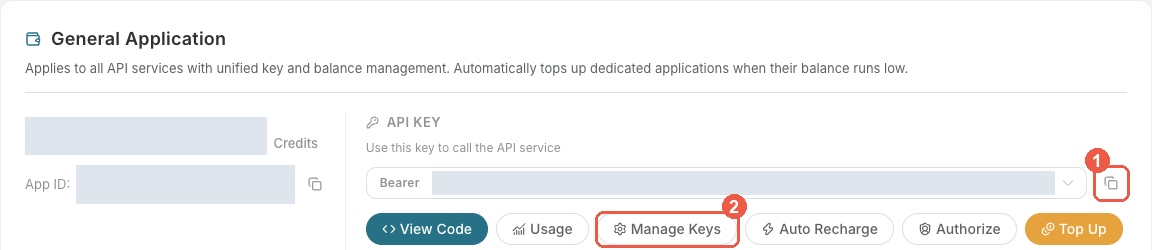
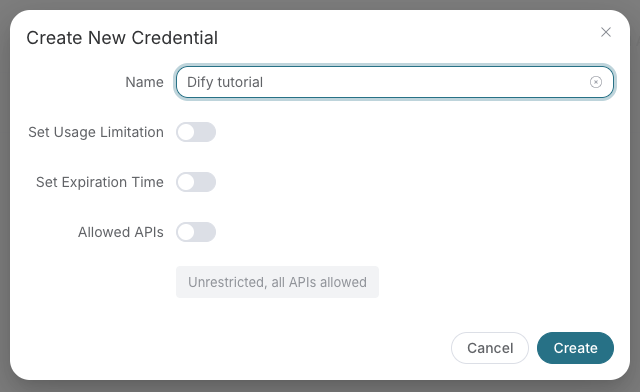
These are real, redacted Ace console screenshots reused from the Dify guide at source revision 8d3d035; checked 2026-10-18. The screenshot's example key name is not an Amp setting.
3. Put the key in Amp's process environment
Set ACEDATACLOUD_API_TOKEN privately in the terminal that starts Amp. On macOS/Linux:
# Replace this placeholder locally; never paste a real key in a prompt or commit it.
export ACEDATACLOUD_API_TOKEN='YOUR_API_TOKEN'
amp
On PowerShell use $env:ACEDATACLOUD_API_TOKEN = 'YOUR_API_TOKEN' before starting Amp. The manifest contains only Bearer ${ACEDATACLOUD_API_TOKEN}, not your key. A new terminal needs the variable too. Hosted personal/workspace Skills run elsewhere: configure their secret in that execution environment; your local shell variable is not automatically copied.
4. Find and load the service
Run amp skill list --json, or open the Amp command palette with Ctrl+O → skills: list. Find gpt-image-by-acedatacloud, then ask Amp to load it. Skill MCP tools stay hidden until the Skill loads. amp mcp doctor gpt-image-ace checks the connection; amp tools list --json inspects active tools. Project-configured MCP servers may need amp mcp approve gpt-image-ace after you review their configuration; do not add a duplicate direct MCP configuration just to approve a Skill.

Official reference from Amp keybindings, downloaded 2026-10-18; capture date/version not published. It is not an Ace run and does not show the Skill selected. page logs is debugging, not the tool entry. Real GPT Image installation/load/result screenshots remain pending an authorized Amp session.
For a no-generation check, ask:
Use GPT Image by Ace Data Cloud only to call openai_list_image_models once. Do not generate media or create a task.
Use openai_list_image_models once to inspect the supported choices; this is informational and does not prove API permissions or balance. Amp inference may itself cost usage: do not run an agent turn unless it is covered by your authorized budget/subscription. Command help, file validation and tool discovery do not prove a paid result.
5. First requested result, then the same task
When you decide to pay for generation, ask:
Use GPT Image by Ace Data Cloud to create one image result. First show the current model/parameters and price for my approval. After I approve, submit once with openai_generate_image, save its task ID, and query only that ID with openai_get_task. Do not retry generation while waiting.
Treat finished_at as terminal, then require response.success=true and inspect the image result; failure is terminal too. An empty task object is not success. Return the actual task ID and final media links. Continue openai_get_task with its original ID after a timeout; do not rerun the entire generation workflow. Compare the corresponding usage record in Ace with that single request. Credits are not USD; conversion uses your current package price/amount.
Troubleshooting
| Symptom | Action |
|---|---|
| No Skill/tools | Check installation path and gpt-image-by-acedatacloud, reload Skills, load this Skill, and check for an older Skill masking the same name. |
| Login prompt before install/doctor | Use the existing Amp account; the Ace API key is a separate credential. |
| 401/403 | Check the full copied service key, GPT Image access, expiry, limits, Allowed APIs and balance; never expose the key. |
| 429 | Wait and reduce concurrency; no automatic paid retries. |
| Pending task or early URL | Query the same task ID; do not generate again. |
| 400, moderation, failed/uncertain request | Preserve the error, inspect the original task, and ask before changing parameters/model or retrying. |
| Different tools unexpectedly visible | A direct MCP setting can override the Skill server. Review existing settings; do not overwrite unrelated connections. |
Privacy and support
The free Skill connects to https://openai.mcp.acedata.cloud/mcp; your chosen inputs and Bearer credential are handled by Ace Data Cloud. API generation uses your Ace account and follows current prices. Review the installed files before sharing them with a workspace; never put a real key in a repository. MCP implementation · Support.
Skill manifest
GPT Image by Ace Data Cloud
Generate or edit GPT Image pictures through Ace Data Cloud, using image-only tools and polling the original image task for its final result. This is an Ace Data Cloud integration, not an official GPT Image or Amp plugin endorsement.
Setup and tool scope
Requires Amp native Skill MCP support, an existing Amp login, and ACEDATACLOUD_API_TOKEN in the environment that starts Amp.
Read README.md for installation, illustrated API-key setup, and troubleshooting.
The sibling mcp.json connects only gpt-image-ace at https://openai.mcp.acedata.cloud/mcp and limits tools to this service.
Reuse an existing matching connection; do not add a second server or alter unrelated settings.
Keep the API key in ACEDATACLOUD_API_TOKEN; never request it in the conversation, put it in a command argument, or print it.
Load this Skill to expose its MCP tools. Use openai_list_image_models once to inspect the supported choices; this is informational and does not prove API permissions or balance.
Generation and retrieval
- Confirm the user wants this image operation and accepts its current pricing, parameters and output count. Always choose an explicit GPT Image model from
openai_list_image_modelsthat the user approves; never rely on the general image tool defaults or silently select DALL·E/Nano Banana. - Call
openai_generate_imageexactly once for that requested operation. Use an edit tool only when the user provides authorized reference media and asks to edit it. - Save the returned task ID. Call
openai_get_task(id="<original task ID>")to retrieve the same task after pending results, disconnects or timeouts. Never submit generation again merely to poll. - Treat
finished_atas terminal, then requireresponse.success=trueand inspect the image result; failure is terminal too. An empty task object is not success. Do not invent IDs, output links, media availability, completion or billing. Report the final status and returned media links; preserve upstream errors (including rate limit and moderation meaning). - On an uncertain submission, inspect its original task/request before any new paid request. A failed result is not permission to retry, change the model, or use a fallback.
Amp reasoning can have its own usage charge. Installation/tool discovery and API metadata are distinct from inference, generation, terminal media, and the account's usage record.
Files (skills)
-
LICENSE 629 B · in bundle
-
listing.json 853 B
Loading… -
mcp.json 306 B
Loading… -
README.md 7.6 KB
# GPT Image by Ace Data Cloud for Amp An independently installable **GPT Image** Skill with native MCP tools, supplied by Ace Data Cloud. Search terms: GPT Image, gpt-image, image. This does not add a default LLM provider, and it is not endorsed by GPT Image's maker or Amp. [简体中文](README.zh-CN.md) · [Current API pricing](https://platform.acedata.cloud/models?utm_source=amp&utm_medium=integration&utm_campaign=evergreen&utm_content=gpt-image_amp_pricing) · [Source](https://github.com/AceDataCloud/Skills/tree/main/platforms/amp/skills/gpt-image-by-acedatacloud) ## 1. Install just this service Amp's [official Skill mechanism](https://ampcode.com/docs/customize/skills) installs a Skill and its sibling `mcp.json`. Install Amp following its [official CLI guide](https://ampcode.com/docs/cli), then sign in with your existing Amp account using `amp login`. ```bash amp skill add AceDataCloud/Skills/platforms/amp/skills/gpt-image-by-acedatacloud ``` The source command above is published from [Ace Skills main](https://github.com/AceDataCloud/Skills/commit/6169154675fd6523ad4230c257c7f70227a7c41b) (2026-10-19). Signed-in Amp installation is still awaiting verification. The proposed official [amp-contrib directory](https://github.com/ampcode/amp-contrib) entry is pending review; **do not treat this source install as an accepted official listing**. If accepted, its independent command is `amp skill add ampcode/amp-contrib/gpt-image-by-acedatacloud`. Do not install both copies. For a reviewed local checkout: `amp skill add ./platforms/amp/skills/gpt-image-by-acedatacloud --target /absolute/path/to/project/.agents/skills`. Amp currently requires an account even for this installer. A local copy/format check is not a signed-in Amp execution test. ## 2. Register/sign in to Ace and get your own key 1. Open [Ace Data Cloud → Applications](https://platform.acedata.cloud/console/applications?utm_source=amp&utm_medium=integration&utm_campaign=evergreen&utm_content=gpt-image_amp_api_key), register if needed, then sign in. Open **General application**; choose **Initialize General Application** if none exists. 2. Check GPT Image service access, your balance and [current pricing](https://platform.acedata.cloud/models?utm_source=amp&utm_medium=integration&utm_campaign=evergreen&utm_content=gpt-image_amp_pricing). Copy the API key, or choose **Manage Keys → Create** for a dedicated `Amp GPT Image` key. 3. Review expiration, usage limits and **Allowed APIs**. If restricted, allow the generation/edit and task-query routes you actually need: `/openai/images/generations, /openai/images/edits, /openai/tasks`. Service availability and any trial allowance are whatever your account currently shows. 4. Copy only the token value, without quotes, spaces or `Bearer `. A `platform-...` management token cannot replace a service API key.   These are real, redacted Ace console screenshots reused from the Dify guide at source revision `8d3d035`; checked 2026-10-18. The screenshot's example key name is not an Amp setting. ## 3. Put the key in Amp's process environment Set `ACEDATACLOUD_API_TOKEN` privately in the terminal that starts Amp. On macOS/Linux: ```bash # Replace this placeholder locally; never paste a real key in a prompt or commit it. export ACEDATACLOUD_API_TOKEN='YOUR_API_TOKEN' amp ``` On PowerShell use `$env:ACEDATACLOUD_API_TOKEN = 'YOUR_API_TOKEN'` before starting Amp. The manifest contains only `Bearer ${ACEDATACLOUD_API_TOKEN}`, not your key. A new terminal needs the variable too. Hosted personal/workspace Skills run elsewhere: configure their secret in that execution environment; your local shell variable is not automatically copied. ## 4. Find and load the service Run `amp skill list --json`, or open the Amp command palette with **Ctrl+O → skills: list**. Find `gpt-image-by-acedatacloud`, then ask Amp to load it. Skill MCP tools stay hidden until the Skill loads. `amp mcp doctor gpt-image-ace` checks the connection; `amp tools list --json` inspects active tools. Project-configured MCP servers may need `amp mcp approve gpt-image-ace` after you review their configuration; do not add a duplicate direct MCP configuration just to approve a Skill.  Official reference from [Amp keybindings](https://ampcode.com/docs/cli/keybindings), downloaded 2026-10-18; capture date/version not published. It is **not an Ace run** and does not show the Skill selected. `page logs` is debugging, not the tool entry. Real GPT Image installation/load/result screenshots remain pending an authorized Amp session. For a no-generation check, ask: > Use GPT Image by Ace Data Cloud only to call openai_list_image_models once. Do not generate media or create a task. Use `openai_list_image_models` once to inspect the supported choices; this is informational and does not prove API permissions or balance. Amp inference may itself cost usage: do not run an agent turn unless it is covered by your authorized budget/subscription. Command help, file validation and tool discovery do not prove a paid result. ## 5. First requested result, then the same task When you decide to pay for generation, ask: > Use GPT Image by Ace Data Cloud to create one image result. First show the current model/parameters and price for my approval. After I approve, submit once with openai_generate_image, save its task ID, and query only that ID with openai_get_task. Do not retry generation while waiting. Treat `finished_at` as terminal, then require `response.success=true` and inspect the image result; failure is terminal too. An empty task object is not success. Return the actual task ID and final media links. Continue `openai_get_task` with its original ID after a timeout; do not rerun the entire generation workflow. Compare the corresponding usage record in Ace with that single request. Credits are not USD; conversion uses your current package price/amount. ## Troubleshooting | Symptom | Action | | --- | --- | | No Skill/tools | Check installation path and `gpt-image-by-acedatacloud`, reload Skills, load this Skill, and check for an older Skill masking the same name. | | Login prompt before install/doctor | Use the existing Amp account; the Ace API key is a separate credential. | | 401/403 | Check the full copied service key, GPT Image access, expiry, limits, Allowed APIs and balance; never expose the key. | | 429 | Wait and reduce concurrency; no automatic paid retries. | | Pending task or early URL | Query the same task ID; do not generate again. | | 400, moderation, failed/uncertain request | Preserve the error, inspect the original task, and ask before changing parameters/model or retrying. | | Different tools unexpectedly visible | A direct MCP setting can override the Skill server. Review existing settings; do not overwrite unrelated connections. | ## Privacy and support The free Skill connects to `https://openai.mcp.acedata.cloud/mcp`; your chosen inputs and Bearer credential are handled by Ace Data Cloud. API generation uses your Ace account and follows current prices. Review the installed files before sharing them with a workspace; never put a real key in a repository. [MCP implementation](https://github.com/AceDataCloud/OpenAIMCP) · [Support](https://github.com/AceDataCloud/Skills/issues). -
README.zh-CN.md 5.2 KB
Loading… -
SKILL.md 2.8 KB
---
name: gpt-image-by-acedatacloud
description: Generate or edit GPT Image pictures through Ace Data Cloud, using image-only tools and polling the original image task for its final result.
license: Apache-2.0
metadata:
  author: Ace Data Cloud
  version: "1.0.0"
  category: image
---

# GPT Image by Ace Data Cloud

Generate or edit GPT Image pictures through Ace Data Cloud, using image-only tools and polling the original image task for its final result.
This is an Ace Data Cloud integration, not an official GPT Image or Amp plugin endorsement.

## Setup and tool scope

Requires Amp native Skill MCP support, an existing Amp login, and `ACEDATACLOUD_API_TOKEN` in the environment that starts Amp.

Read [README.md](README.md) for installation, illustrated API-key setup, and troubleshooting.
The sibling `mcp.json` connects only `gpt-image-ace` at `https://openai.mcp.acedata.cloud/mcp` and limits tools to this service.
Reuse an existing matching connection; do not add a second server or alter unrelated settings.
Keep the API key in `ACEDATACLOUD_API_TOKEN`; never request it in the conversation, put it in a command argument, or print it.
Load this Skill to expose its MCP tools. Use `openai_list_image_models` once to inspect the supported choices; this is informational and does not prove API permissions or balance.

## Generation and retrieval

1. Confirm the user wants this image operation and accepts its [current pricing](https://platform.acedata.cloud/models?utm_source=amp&utm_medium=integration&utm_campaign=evergreen&utm_content=gpt-image_amp_pricing), parameters and output count. Always choose an explicit GPT Image model from `openai_list_image_models` that the user approves; never rely on the general image tool defaults or silently select DALL·E/Nano Banana.
2. Call `openai_generate_image` exactly once for that requested operation. Use an edit tool only when the user provides authorized reference media and asks to edit it.
3. Save the returned task ID. Call `openai_get_task(id="<original task ID>")` to retrieve the same task after pending results, disconnects or timeouts. Never submit generation again merely to poll.
4. Treat `finished_at` as terminal, then require `response.success=true` and inspect the image result; failure is terminal too. An empty task object is not success. Do not invent IDs, output links, media availability, completion or billing. Report the final status and returned media links; preserve upstream errors (including rate limit and moderation meaning).
5. On an uncertain submission, inspect its original task/request before any new paid request. A failed result is not permission to retry, change the model, or use a fallback.

Amp reasoning can have its own usage charge. Installation/tool discovery and API metadata are distinct from inference, generation, terminal media, and the account's usage record.
Comments (0)
Sign in to join the conversation.
Reviews (0)
No reviews yet.
No comments yet.